SCXML Editor
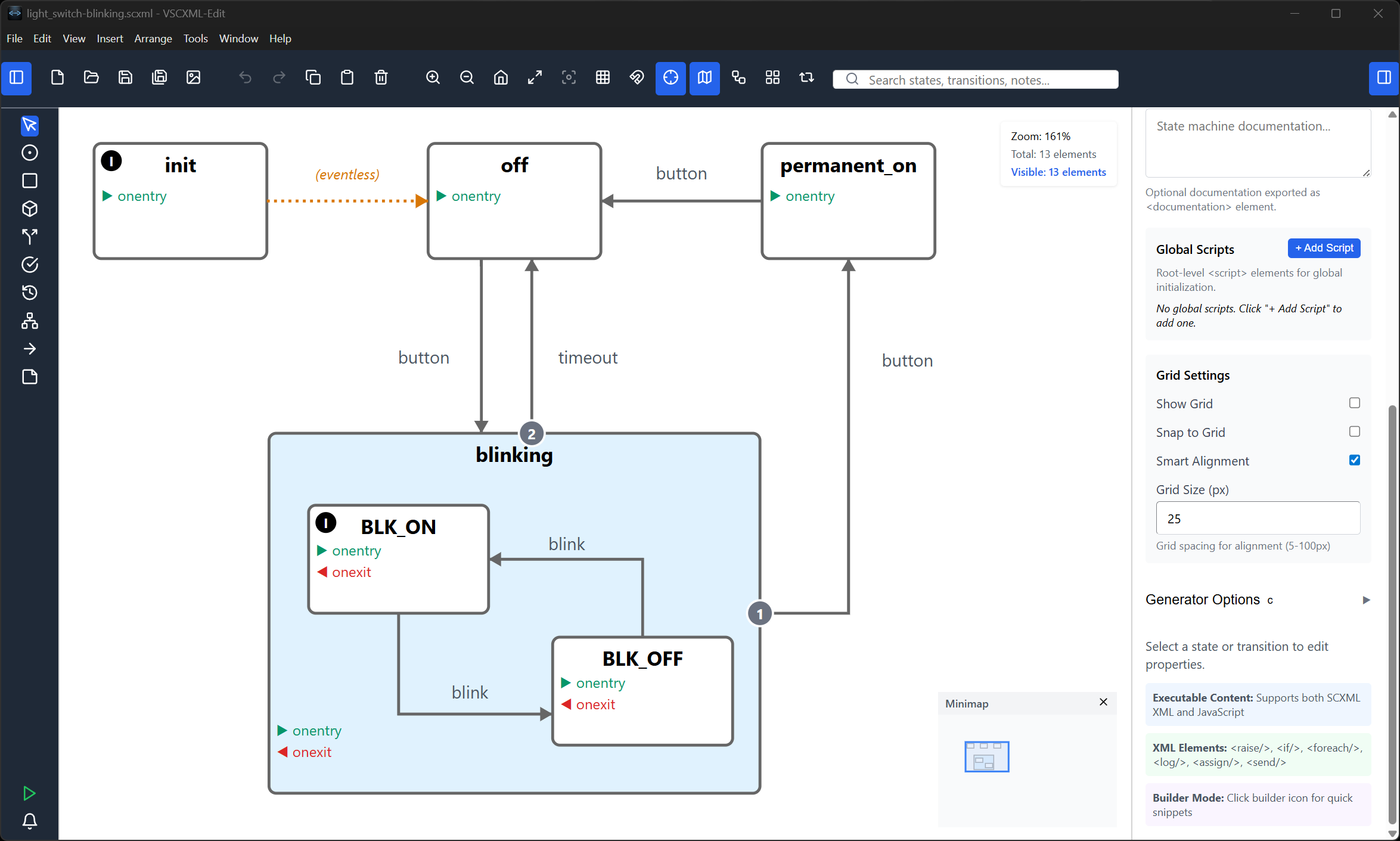
The SCXML Editor is a professional visual state machine designer available for Windows, macOS, and Linux. Design complex hierarchical statecharts with an intuitive drag-and-drop interface.
Installation
Download the installer for your platform:
| Platform | Download | Requirements |
|---|---|---|
| Windows | SCXML Editor Setup.exe | Windows 10/11 (x64 or x86) |
| macOS | SCXML Editor.dmg | macOS 11+ (Intel & Apple Silicon) |
| Linux | scxml-editor.AppImage | Any modern Linux distro |
After installation, the editor appears in your system's application menu.
Quick Start
- Launch the SCXML Editor from your applications menu
- Create states by selecting a state type from the toolbar and clicking on the canvas
- Connect states with transitions by dragging from one state to another
- Configure states and transitions in the properties panel on the right
- Export your design as
.scxmlto use with the Generator
Features
Visual Design Canvas
- Drag & Drop - Create and arrange states visually
- Pan & Zoom - Navigate large diagrams with mouse wheel and middle-click
- Grid Snap - Align states precisely with optional grid snapping
- Auto-Layout - Automatically arrange states with hierarchical layout algorithms
- Minimap - Bird's-eye navigation for complex diagrams
State Types
| Type | Description | Visual |
|---|---|---|
| Simple | Atomic states with no children | Rounded rectangle |
| Compound | Container with child states (one active at a time) | Rounded rectangle with children |
| Parallel | Concurrent regions (all active simultaneously) | Dashed border container |
| Final | Terminal state signaling completion | Double-bordered circle |
| History | Remembers and restores previous state | Circle with H |
Transitions
- Event-based - Triggered by named events
- Eventless - Execute automatically (spontaneous transitions)
- Conditional - Guard expressions that must evaluate to true
- Internal - Execute actions without exiting/entering the state
- Multi-target - Transition to multiple states simultaneously
Executable Content
Add actions to state entry, exit, and transitions:
| Element | Purpose | Example |
|---|---|---|
<script> |
Run JavaScript code | counter++ |
<assign> |
Set variable values | location="x" expr="10" |
<raise> |
Raise internal events | event="error.occurred" |
<send> |
Send events (with delay) | event="timeout" delay="5s" |
<log> |
Output debug messages | expr="'State entered'" |
<if> |
Conditional execution | cond="x > 10" |
<foreach> |
Loop over arrays | array="items" item="i" |
Invoke Support
Launch child state machines from within a state:
<invoke type="scxml" src="child-machine.scxml" id="child1">
    <param name="input" expr="parentValue"/>
    <finalize>
        <assign location="result" expr="_event.data.output"/>
    </finalize>
</invoke>
Keyboard Shortcuts
File Operations
| Shortcut | Action |
|---|---|
Ctrl/Cmd + N |
New diagram |
Ctrl/Cmd + O |
Open file |
Ctrl/Cmd + S |
Save |
Ctrl/Cmd + Shift + S |
Save As |
Editing
| Shortcut | Action |
|---|---|
Ctrl/Cmd + Z |
Undo |
Ctrl/Cmd + Y |
Redo |
Ctrl/Cmd + C |
Copy |
Ctrl/Cmd + V |
Paste |
Delete |
Delete selected |
Escape |
Deselect all |
View
| Shortcut | Action |
|---|---|
Mouse Wheel |
Zoom in/out |
Ctrl/Cmd + 0 |
Reset zoom to 100% |
Ctrl/Cmd + 1 |
Fit to content |
Ctrl/Cmd + M |
Toggle minimap |
Ctrl/Cmd + G |
Toggle grid |
Quick Insert (in insert mode)
| Key | State Type |
|---|---|
S |
Simple state |
C |
Compound state |
P |
Parallel state |
F |
Final state |
H |
History (shallow) |
Shift + H |
History (deep) |
Workflow Integration
The SCXML Editor works seamlessly with the other vscxml tools:
┌─────────────────┐     ┌─────────────────┐     ┌─────────────────┐
│  SCXML Editor   │────▶│    Simulator    │────▶│    Generator    │
│  (Design)       │     │  (Test & Debug) │     │  (Build Code)   │
└─────────────────┘     └─────────────────┘     └─────────────────┘
        │                                               │
        │            Export .scxml file                 │
└───────────────────────────────────────────────┘- Design your state machine visually in the Editor
- Test the logic with the Simulator before generating code
- Generate production code with the Generator
Import & Export
Exporting Your Design
- SCXML - W3C-compliant XML format (use with Generator and Simulator)
- SVG - Vector graphics for documentation
- PNG - Raster image for presentations
The Editor preserves layout metadata in the SCXML file, so re-importing restores exact positions.
Importing Existing SCXML
Open any valid SCXML file. If no layout metadata is present, the auto-layout algorithm arranges states automatically.
Validation
Click the validation button (Ctrl/Cmd + K) to check your diagram for:
- Errors - Critical issues that would prevent the state machine from running
- Warnings - Best practice violations (unreachable states, undefined events)
- Info - Helpful statistics and suggestions
Results appear in the notification panel at the bottom of the window.
Tips & Best Practices
- Name states descriptively - Use meaningful IDs like
waitingForPaymentinstead ofstate1 - Use compound states for hierarchy - Group related states to reduce complexity
- Validate early and often - Catch issues before generating code
- Export regularly - Save your work in SCXML format for backup
- Use auto-layout - Let the algorithm organize your diagram, then fine-tune manually
AI Integration (MCP)
The Editor integrates with AI assistants via the VSCXML MCP Server. When the editor is running, Claude Code and other MCP-compatible tools can:
- Push and pull SCXML documents to/from the editor canvas
- Highlight states with semantic colors (error, warning, success, info)
- Add annotations with conditional visibility
- Add/remove states and transitions programmatically
- Navigate the canvas (center, fit, zoom)
- Export SVG, PNG, or interactive HTML
- Connect to the simulator for live state highlighting during simulation
- Take screenshots of the current diagram
The MCP editor API starts automatically on port 48623 when the editor launches. No additional configuration is needed.
Install the MCP server for Claude Code:
claude mcp add vscxml -- npx -y @vscxml/mcpNext Steps
- Simulator Guide — Test your state machine interactively
- Generator Guide — Generate production code
- MCP Setup Guide — AI integration with Claude Code
- Traffic Light Tutorial — Interactive step-by-step example