VSCXML Simulator
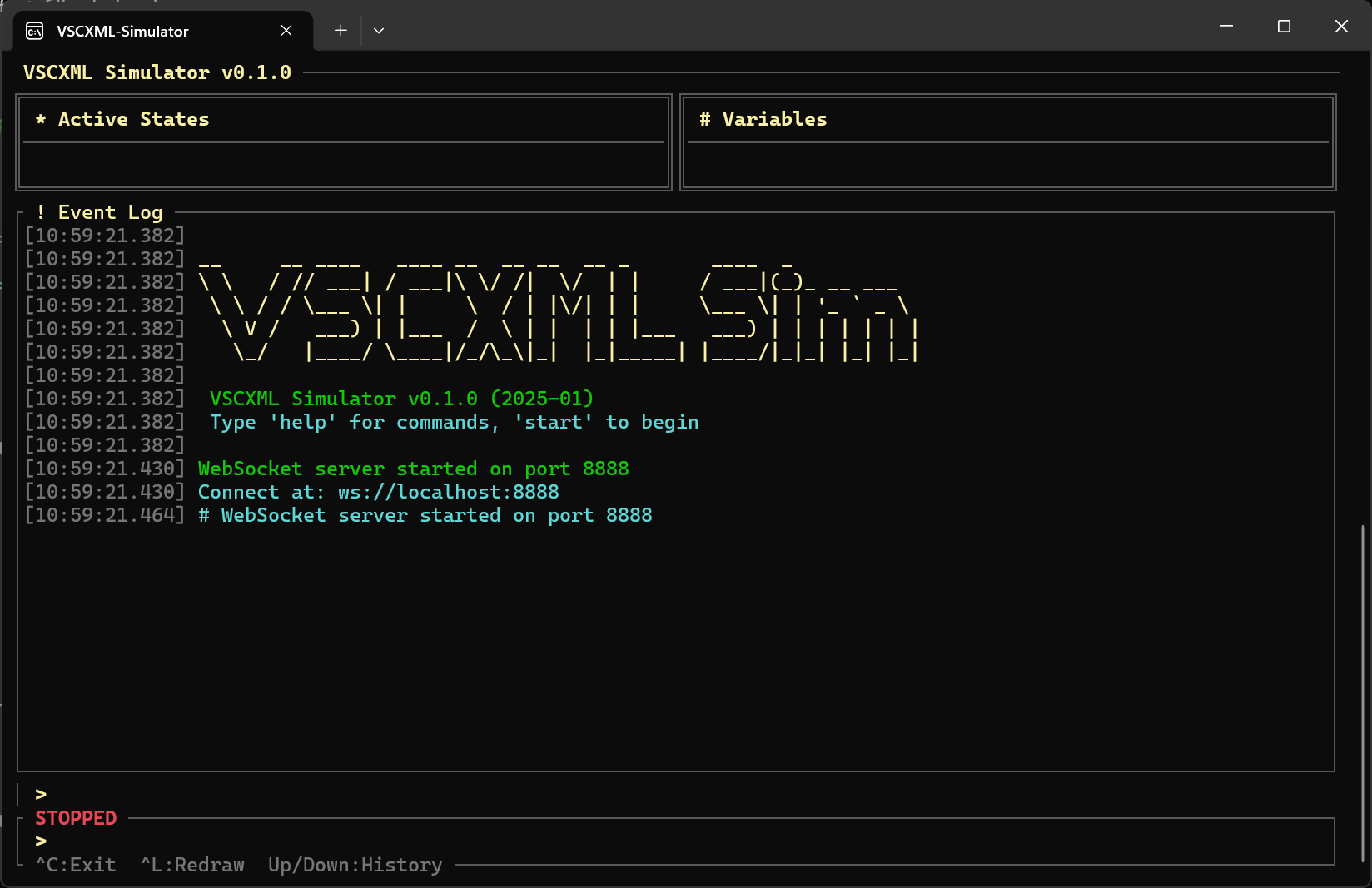
The VSCXML Simulator is an interactive terminal-based REPL for testing and debugging state machines. Available for Windows, macOS, and Linux, it lets you step through state transitions, send events, inspect variables, and record execution traces.
Installation
Download the installer for your platform:
| Platform | Download | Requirements |
|---|---|---|
| Windows | VSCXML Simulator Setup.exe | Windows 10/11 |
| macOS | VSCXML Simulator.dmg | macOS 11+ |
| Linux | vscxml-simulator.AppImage | Any modern Linux distro |
After installation, the simulator appears in your system's application menu as VSCXML Simulator.
Quick Start
- Launch the VSCXML Simulator
- Load an SCXML file:
scxml-simulator myfile.scxml - Start the state machine: type
start - Send events: type
send myevent - Observe state changes in the Active States panel
User Interface
The simulator displays a three-panel terminal interface:
┌─────────────────────────────────────────────────────────────────────┐
│ VSCXML Simulator v0.1.0                                             │
├────────────────────────────────────┬────────────────────────────────┤
│ * Active States                    │ # Variables                    │
│ ─────────────────                  │ ─────────────────              │
│   main                             │ counter: 5                     │
│     └─ running                     │ status: "active"               │
│         └─ processing              │ items: [1, 2, 3]               │
├────────────────────────────────────┴────────────────────────────────┤
│ ! Event Log                                                         │
│ ────────────────────────────────────────────────────────────────────│
│ [10:23:45.123]  session_start: datamodel=ecmascript                 │
│ [10:23:45.125]  state_enter: main                                   │
│ [10:23:45.126]  state_enter: main.idle                              │
│ [10:23:47.456]  event_received: start                               │
│ [10:23:47.458]  transition: main.idle → main.running                │
├─────────────────────────────────────────────────────────────────────┤
│ > _                                                        RUNNING  │
└─────────────────────────────────────────────────────────────────────┘
Panels
| Panel | Description |
|---|---|
| Active States | Hierarchical view of currently active states |
| Variables | All datamodel variables with current values |
| Event Log | Timestamped log of events, transitions, and state changes |
| Command Prompt | Enter commands at the > prompt |
| Status | Current execution mode (RUNNING, PAUSED, STOPPED, FINISHED) |
Commands
Session Control
| Command | Description |
|---|---|
start |
Initialize and enter initial state |
reset |
Reset state machine to initial configuration |
quit / exit |
Exit the simulator |
Execution Control
| Command | Description |
|---|---|
step |
Execute one macro step |
continue / c |
Run until completion or pause |
pause |
Pause automatic event processing |
resume |
Resume automatic processing |
Sending Events
| Command | Description |
|---|---|
send <event> |
Send an event to the state machine |
send <event> <json> |
Send event with JSON data |
poll / tick |
Manually process delayed events |
Examples:
> send button_pressed
> send login {"username": "admin", "password": "secret"}
> send timeout
Inspection
| Command | Description |
|---|---|
state / s |
Show current active states |
vars / v |
Show all datamodel variables |
get <var> |
Get a specific variable value |
scheduled / queue |
Show pending delayed events |
history / h |
Show execution history |
Variable Manipulation
| Command | Description |
|---|---|
set <var> <value> |
Set a variable value |
Values are auto-parsed:
set counter 5→ integerset flag true→ booleanset name "Alice"→ stringset items [1,2,3]→ array
Watch Settings
Control what information is displayed in real-time:
| Command | Description |
|---|---|
watch states <on|off> |
Toggle state enter/exit display |
watch transitions <on|off> |
Toggle transition display |
watch events <on|off> |
Toggle event processing display |
watch vars <on|off|full> |
Show variable changes (or all) |
watch scheduled <on|off> |
Auto-show scheduled events |
watch debug <on|off> |
Toggle internal debug logging |
show |
Display current watch settings |
Trace Recording
Record execution traces to JSONL files for later analysis:
| Command | Description |
|---|---|
trace start <file> |
Start recording to file |
trace stop <file> |
Stop recording |
trace list |
List active trace files |
WebSocket Server
Start a WebSocket server for external tool integration:
| Command | Description |
|---|---|
serve [port] |
Start WebSocket server (default: 8888) |
stop-server |
Stop the WebSocket server |
Help
| Command | Description |
|---|---|
help / ? |
Show available commands |
Execution Modes
| Mode | Description |
|---|---|
| STOPPED | Initial state, machine not started |
| RUNNING | Automatic event processing active |
| PAUSED | Stopped, responds only to manual commands |
| STEPPING | Single-step mode |
| FINISHED | State machine reached final state |
Command-Line Usage
# Load and start interactive REPL
scxml-simulator traffic.scxml

# Start with trace recording
scxml-simulator traffic.scxml --trace execution.jsonl

# Start with WebSocket server
scxml-simulator traffic.scxml --serve 8888
Command-Line Options
| Option | Description |
|---|---|
<file.scxml> |
SCXML file to load |
--trace <file> |
Record execution trace to JSONL file |
--serve <port> |
Start WebSocket server on port |
--help |
Show help |
Event Log Format
The Event Log displays timestamped entries:
| Entry Type | Description |
|---|---|
session_start |
Machine initialized with datamodel type |
state_enter |
State entry with timing |
state_exit |
State exit with timing |
event_received |
External event received |
event_processed |
Event processing completed |
transition |
Transition fired (source → target) |
variable_changed |
Variable value changed |
log |
Output from SCXML <log> elements |
session_end |
Machine reached final state |
Trace File Format
Traces are recorded in JSONL format (one JSON object per line):
{"timestamp":1704567890123456,"type":"session_start","datamodel":"ecmascript"}
{"timestamp":1704567890123500,"type":"state_enter","state_id":"main"}
{"timestamp":1704567890124000,"type":"event_received","event":"start","data":{}}
{"timestamp":1704567890124100,"type":"transition","source":"idle","target":"running","event":"start"}
{"timestamp":1704567890124200,"type":"variable_changed","var":"counter","old":0,"new":1}
Trace Fields
| Field | Description |
|---|---|
timestamp |
Microseconds since epoch |
type |
Entry type (see Event Log Format) |
state_id |
State identifier (for state events) |
event |
Event name (for event entries) |
data |
Event data (JSON object) |
source / target |
Transition endpoints |
var / old / new |
Variable change details |
WebSocket Integration
The WebSocket server enables integration with external tools like the Visual Editor.
Starting the Server
> serve 8888
WebSocket server started on port 8888
Connect at: ws://localhost:8888
Message Protocol
Client → Server:
{"type": "send_event", "event": "button", "data": {}}
{"type": "pause"}
{"type": "resume"}
{"type": "step"}
Server → Client (broadcasts):
{"type": "state_update", "active": ["main", "main.running"]}
{"type": "transition_fired", "source": "idle", "target": "running"}
{"type": "variable_changed", "var": "counter", "value": 5}
Example Session
$ scxml-simulator traffic-light.scxml

VSCXML Simulator v0.1.0
Type 'help' for commands, 'start' to begin

> start
[10:00:00.001]  session_start: datamodel=ecmascript
[10:00:00.002]  state_enter: red

> state
Active states: [red]

> send timer
[10:00:05.100]  event_received: timer
[10:00:05.101]  transition: red → green
[10:00:05.102]  state_exit: red
[10:00:05.103]  state_enter: green

> vars
counter: 1
cycle_count: 0

> set counter 10
counter = 10

> send timer
[10:00:10.200]  event_received: timer
[10:00:10.201]  transition: green → yellow

> history
1. session_start
2. state_enter: red
3. event: timer → transition: red → green
4. event: timer → transition: green → yellow

> quit
Goodbye!
Datamodel Support
The simulator supports multiple datamodels:
| Datamodel | Description |
|---|---|
| ecmascript | Full JavaScript expressions (Rhino engine) |
| null | Event-only, no variables |
Workflow Integration
The Simulator bridges design and code generation:
┌─────────────────┐          ┌─────────────────┐
│  SCXML Editor   │────────▶│    Simulator    │
│  (Design)       │  .scxml  │  (Test & Debug) │
└─────────────────┘          └────────┬────────┘
                                      │
                             All tests pass?
                                      │
                                      ▼
                             ┌─────────────────┐
                             │    Generator    │
                             │  (Build Code)   │
└─────────────────┘- Design in the Editor
- Test thoroughly in the Simulator
- Generate code with the Generator only after validation
Tips & Best Practices
- Use
watchcommands to focus on relevant information during debugging - Record traces for complex debugging sessions or regression testing
- Use
stepmode to carefully examine transition behavior - Check
scheduledto see pending delayed events - Use
setto test edge cases by modifying variables directly
AI Integration (MCP)
The Simulator is also accessible via the VSCXML MCP Server, enabling AI assistants to run simulations, send events, record traces, and inspect state — all programmatically.
Key MCP tools for simulation:
scxml_sim_start— Load and start a simulation sessionscxml_sim_send— Send an event and get the tracescxml_sim_scenario— Run a batch of events (most useful for testing)scxml_sim_timed_scenario— Run events with delays (for<send delay="..."/>machines)scxml_trace_embed— Save execution traces into the SCXML document
Install the MCP server for Claude Code:
claude mcp add vscxml -- npx -y @vscxml/mcpNext Steps
- Editor Guide — Design state machines visually
- Generator Guide — Generate production code
- MCP Setup Guide — AI integration with Claude Code
- Traffic Light Tutorial — Interactive step-by-step example